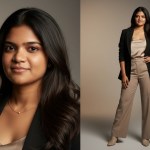
I’ve been trying a lot of AI tools for editing my photos, but Gemini is the one that feels the most real.
It doesn’t make faces too shiny or fake — it keeps things clean, soft, and cinematic. So today, I’m sharing what I learned while finding the best prompt for photo editing in Gemini — and a few of my favorite prompts that you can try too.
💡 Why I Love Gemini for Photo Editing
Gemini AI is extremely easy to use and produces results that appear natural — not overdone.
It understands skin tone, lighting, and background balance really well.
Even when you use a simple prompt, it makes your photo look professional.
If you’ve ever wanted your pictures to look like they were taken by a real photographer — Gemini can do that with just one good prompt.
📸 What Makes a Good Gemini Photo Edit Prompt
A good photo editing prompt should be simple, short, and clear.
You don’t need fancy words — just describe what you want to feel in the image.
Here’s what usually works best:
✅ Tell Gemini the lighting style (soft light, golden hour, cinematic).
✅ Describe the mood (calm, confident, professional, natural).
✅ Keep your face and features the same (say “keep natural face” or “matching reference face”).
✅ Avoid too many details — it confuses the AI.
The magic comes from balance and clarity, not long prompts.
My 5 Best Prompts for Photo Editing in Gemini
Here are some prompts you can copy, paste, and try.
Each one gives a unique photo style — from clean portraits to cinematic edits.
✨ Prompt 1 — Natural Clean Portrait Edit

A natural, clean portrait photoshoot of a young man (perfectly matching the uploaded reference face) captured in soft daylight. He stands against a plain, warm-toned neutral background — beige or light gray — with no distractions, allowing focus on his expression and natural features. He wears a simple white cotton shirt with the top button open, sleeves slightly rolled, styled effortlessly. His hair is neat yet slightly tousled, skin tone realistic with soft highlights from side lighting. The overall look is elegant, minimal, and unedited — no heavy contrast or filters. The portrait is shot at eye level with a 50mm lens for true-to-life proportions, balanced exposure, and smooth depth of field. The atmosphere feels genuine, calm, and timeless. —style raw —lighting soft diffused natural —lens 50mm f/2 shallow DOF —focus sharp on eyes —detail ultra realistic —mood serene, clean, and authentic.🎬 Prompt 2 — Cinematic Studio Look

A highly detailed, ultra-realistic cinematic studio portrait of the same man. He stands under focused key lighting that carves sharp contrast across his face. His head tilts slightly down but his eyes look straight into the camera — calm yet intense. He wears a fitted black t-shirt and dark jeans, minimal and modern. Subtle mist or haze drifts through the light, adding depth. Background fades into rich shadows with a faint warm rim light defining his silhouette. Expression: quiet confidence, as if caught mid-thought before something big.☀️ Prompt 3 — Golden Hour Edit

A natural, cinematic golden hour portrait of the same Person standing outdoors just before sunset. Warm sunlight glows softly on his face, creating a golden halo along his or her hair and shoulders. He wears a casual off-white linen shirt with the sleeves rolled, and light beige chinos — relaxed, effortless. His or her head is slightly turned toward the light, eyes half-squinting, with a calm, genuine smile. The background blurs into warm bokeh — glowing leaves, soft sky hues of orange and rose. Gentle breeze lifts a few strands of hair, capturing that fleeting warmth of evening light.🕶️ Prompt 4 — Modern Cool-Tone Edit

A stylish young man (perfectly matching the uploaded reference face) standing in a sleek, minimalist studio with cool-toned lighting — soft blue and silver hues reflecting off a matte grey backdrop. He wears a fitted charcoal turtleneck under a navy blazer, paired with tailored black trousers and white sneakers. His pose is relaxed yet confident: one hand casually adjusting his blazer lapel, the other resting in his pocket. His gaze is steady toward the camera, with a faint smirk. Subtle rim lighting outlines his hair and shoulders, giving a crisp, cinematic edge. The atmosphere feels calm, modern, and polished — a blend of fashion editorial and cinematic portrait.🌈 Prompt 5 — Soft Dreamy Photo Look

A young man standing in a sunlit meadow during early morning mist, surrounded by soft golden light filtering through tall grass and wildflowers. He wears a loose cream linen shirt, slightly unbuttoned, and beige chinos rolled at the ankles, barefoot on the dewy ground. His expression is peaceful, eyes closed as he faces the gentle breeze, hair tousled naturally. One hand brushes through the tall grass while the other rests loosely by his side. The background softly blurs into pastel tones of green and gold, creating an ethereal, dreamlike glow. The mood feels calm, nostalgic, and tender — like a quiet memory caught between light and air.🧠 Simple Tips That Make a Big Difference
Here’s what I learned while testing Gemini for editing:
- Always upload a clear, well-lit photo as your base with Full-Body.
- Keep your prompt short and human-like.
- Use Natural Light or Soft Cinematic in the lighting options.
- If your photo looks too dark, rerun the prompt — Gemini adjusts itself.
- Don’t change your lighting setting too much between runs.
Small tweaks = big results.
How to Use These Prompts in Gemini Nano Banana
If you’re new to Gemini Nano Banana, don’t worry — it’s super simple to use.
Here’s exactly how I use my prompts to get perfect, realistic photo edits every time.
🧠 Step-by-Step Guide for Gemini Nano Banana
1. Open Gemini Nano Banana
Go to the Gemini AI workspace (Nano Banana mode) and click on Image Generation or Photo Edit.
You’ll see an area where you can upload your reference photo or drag it directly.
2. Upload Your Reference Photo
Choose a clear, natural photo of yourself or your subject.
Try to use:
- Good lighting (not too dark or too bright).
- Neutral expression.
- A photo where the face and Body is fully visible.
👉 This helps Gemini match your features perfectly.
3. Paste the Prompt
Copy any of the photo editing prompts from above and paste it into the prompt box.
You can modify words like “lighting,” “tone,” or “style” to match your idea — for example:
- Change “golden hour” to “soft daylight”
- Add “cinematic tone” for more depth
- Remove any word that feels too strong
Keep it short and clear — Gemini understands natural human language best.
4. Choose the Aspect Ratio (Important!)
This part decides the shape of your image — like if it’s vertical, square, or landscape.
You’ll find the Aspect Ratio Menu on the top-right corner of Gemini’s image editor window.
Click on it to open the dropdown list.
Here’s what each option means:
| Aspect Ratio | Shape | Best For |
|---|---|---|
| Auto | Gemini chooses the best one for your photo | Good for general use |
| 4:3 (Portrait) | Tall frame | Profile photos, vertical portraits |
| 16:9 (Landscape) | Wide frame | Cinematic scenes, backgrounds |
| 1:1 (Square) | Equal sides | Instagram posts, clean close-ups |
| 3:2 (Classic) | Camera-style photo look | Editorial and natural edits |
💡 My tip:
When I use reference photos that are wide (like normal full-body photos), I keep it on Auto — it usually gives a 16:9 output.
But if you want a more professional portrait, 4:3 is perfect.
5. Click Generate and Save
Now hit Generate and let Gemini do its magic.
You’ll see your photo come to life in just a few seconds — edited, balanced, and cinematic.
If it looks a bit off (like too bright or too dark):
- Click Regenerate
- Or add a small word like “slightly softer light” or “add warmth” in your prompt
- Save the final photo
Gemini usually improves with each rerun. Try running the same prompt in different aspect ratios — it gives fun, fresh results every time!
🧰 Extra Tips
- If you want more realistic textures, add this line at the end of your prompt: “keep natural skin texture and realistic lighting balance.”
- To fix flat or dull light, add: “add soft natural contrast and slight warm tone.”
- To make portraits pop, use: “shallow depth of field, smooth background blur.”
These tiny edits help Gemini Nano Banana understand your artistic goal clearly.
🌟 Example Workflow
Here’s how I did my last one 👇
- Uploaded a clean portrait photo.
- Pasted my “Golden Hour Edit” prompt.
- Set the aspect ratio to Auto for a portrait look.
- Selected Natural Light as lighting.
- Clicked Generate → waited 10 to 15 seconds.
- The photo came out soft, glowing, and warm — just like real sunlight.
✅ Quick Summary
Best combo for Gemini Nano Banana editing:
- Photo Type: Well-lit, single subject, clear background
- Aspect Ratio: Auto or 4:3
- Lighting: Natural or Soft Cinematic
- Prompt Style: Short, emotional, human-like
🔥 Why These Prompts Work
Because they’re simple.
They focus on light, tone, and realism — not on over-editing.
Gemini understands emotion in small words.
That’s why “soft light,” “warm tone,” and “realistic texture” work better than “ultra-hyper-mega 8K stylish cinematic masterpiece” — that just confuses it.
Keeping it real and natural gives you a photo that feels like it came straight from a DSLR camera.
Related Prompts
- Transform Your Photos with 3 Amazing Prompts for Gemini Photo Editing
- Gemini Prompt for Image Generation Trending: Turn Simple Photos into Viral AI Portraits
- 3 Gemini AI Photo Prompts Copy Paste Trending — Try These Hot Styles Now
- Cinematic Close-Up Portrait Prompt — Vintage Camera Vibe for Men
- Abandoned Jeep AI Portrait Prompt — Rugged, Real, and Cinematic
Final Thoughts
If you want your photos to look natural, clean, and cinematic, this list of best prompts for photo editing in Gemini will help you get there fast.
The secret is not using too many big words — it’s about writing prompts that feel human.
Describe the light, the tone, and the emotion — and Gemini will do the rest.
Try a few of these prompts today, and you’ll see how small changes can make your photos look like a professional photoshoot.
FAQ: Photo Editing with Gemini AI
1. What makes Gemini different from other AI photo editors?
Gemini stands out because it focuses on producing realistic, natural-looking edits. Unlike other AI tools that often oversaturate skin tones or apply heavy filters, Gemini maintains a soft, cinematic feel. It also has a unique ability to understand lighting, skin tones, and background balance, resulting in photos that look professionally taken. This makes your final image appear polished yet authentic, without losing the subject’s natural beauty.
2. What’s the best way to write a prompt for Gemini?
To get the best results with Gemini, your prompt should be clear, simple, and convey an emotional tone. Focus on essential elements such as lighting, mood, and the subject’s natural features. For example:
- Lighting: Soft light, golden hour, cinematic
- Mood: Calm, confident, professional, natural
- Details: Keep the face and features natural; avoid overloading with too many details.
By focusing on these key points, you ensure that the AI can generate the most fitting edit for your photo.
3. Can I use these prompts with any photo?
Yes, you can! However, the best results come from high-quality, well-lit photos. Make sure your subject has a neutral expression and that the face and body are clearly visible. Additionally, the background should not be too distracting, as this can affect the quality of the final result.
4. How can I make my photo look more professional using Gemini?
There are several ways to enhance your photo’s professional look with Gemini:
- Use natural light or opt for a soft, cinematic light in your prompts.
- Keep your prompts short and emotional, focusing on the vibe you want to convey.
- Choose a simple, well-lit reference photo.
- Experiment with different aspect ratios. For example, a 4:3 ratio is ideal for portraits.
- Even small tweaks like “soft lighting” or “add warmth” in your prompt can make a big difference in the final image.
By adjusting these elements, you’ll achieve a polished, professional look.
5. How do I choose the right aspect ratio?
Gemini offers various aspect ratio options to suit different styles and uses:
- Auto: Ideal for general use, typically outputs a 16:9 ratio for wide shots.
- 4:3: Best for vertical portraits or profile shots.
- 16:9: Perfect for cinematic scenes or wide-angle shots.
- 1:1: Square format, ideal for Instagram or social media posts.
- 3:2: Classic camera-style look, great for editorial images.
Choosing the right ratio depends on the type of photo you’re working with and the platform where you plan to display it.
6. What should I do if my photo looks too dark or too bright after editing?
If your edited photo looks too dark or too bright, don’t worry! You can easily fix this by clicking the “Regenerate” button. Additionally, adding phrases like “slightly softer light” or “add warmth” to your prompt can adjust the lighting balance to your liking.
7. Can I customize these prompts?
Absolutely! Customizing prompts allows you to fine-tune your edits according to your specific needs. For example, you can:
- Change “golden hour” to “soft daylight” for a different lighting effect.
- Add “cinematic tone” for a richer, deeper atmosphere.
Feel free to get creative with your descriptions and tweak them until the results match your vision.
8. How long does it take to get an edited photo?
Gemini processes your photo in just a few seconds. Once you’ve entered your prompt and selected your settings, the edited photo is generated almost instantly. This quick turnaround lets you experiment and refine your edits with ease.
9. Can Gemini be used for full-body shots as well as portraits?
Yes, Gemini is versatile and can handle both full-body and portrait shots. However, to ensure the best results, make sure your reference photo is well-lit and that the full subject is visible. This will allow Gemini to generate a more accurate and polished edit.
10. How do I make my photos more realistic?
If you want to keep your photos looking as natural as possible, here are some helpful prompts:
- “Keep natural skin texture”
- “Add soft, natural contrast”
- “Use realistic lighting balance”
Incorporating these phrases ensures that your photos appear more lifelike and less edited, maintaining the authentic essence of the subject.